Day 12: Use ChatGPT for Documents, Data, Visuals, Tools, and Integrations
What you will learn and leave with
This lesson teaches you how to use ChatGPT for documents, data, visuals, tools, and integrations. It uses ChatGPT as a practical learning context while keeping privacy, accuracy, context, and human judgment in charge.
Use this when: you want guided practice with ChatGPT before applying it to real work. By the end: you will save table, visual recommendation, and source-data check note.
Course position: Day 12 of 30 · ChatGPT module
Continue: Day 13: Produce a Visual Summary and Planning Workflow
Source check: product features and interfaces can change. OpenAI ChatGPT Help Center was checked for this course on 2026-08-30; confirm current details before using a changing feature.
Listen to the Day 12 Introduction
This short audio introduces the day and what to focus on.
Day 12: Use ChatGPT for Documents, Data, Visuals, Tools, and Integrations audio transcript
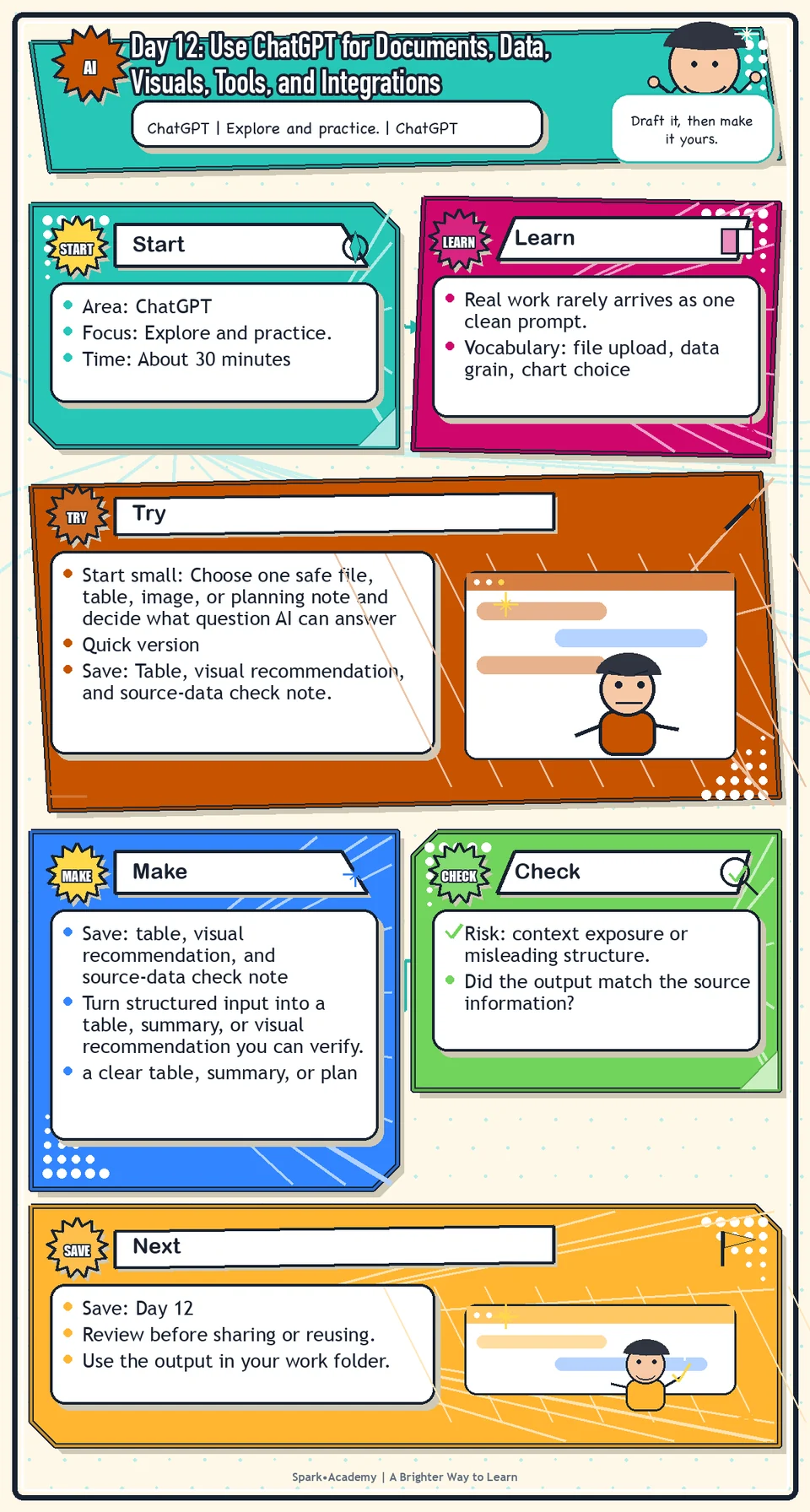
Real work rarely arrives as one clean prompt.
It shows up as notes, screenshots, documents, tables, slides, meeting summaries, and half-formed questions.
Welcome to Day 12 of the 30-Day AI at Work Challenge: Use ChatGPT for Documents, Data, Visuals, Tools, and Integrations.
Today is about richer context. ChatGPT can often help you summarize a safe document, organize a table, compare materials, suggest a visual, or turn messy information into a plan. But more context also means more responsibility.
Let's start with the risk. Files, screenshots, tables, and connected tools can expose information that should not be shared with AI. They can also make weak patterns look more convincing than they really are.
So the first question is not, "Can I upload this?" The first question is, "Is this safe and approved to use here?"
When the material is safe, the next question is about structure. Clean columns, clear labels, specific questions, and known limits make AI output more useful. If the input is messy, ask the tool to explain assumptions, missing values, and possible errors.
Today, you will practice turning structured input into a table, summary, visual recommendation, or plan. Then you will check it.
Do the review slowly. Are the numbers right? Are the categories accurate? Did the tool infer something you did not provide? Does the visual suggestion match the audience?
Before you begin, think of one safe file, table, image, or planning note. What question could AI help answer without overreaching?
By the end, you will save a table, visual recommendation, and source-data check note. The point is useful structure, not blind trust.
Why It Matters
Real work rarely arrives as one clean prompt. It may involve PDFs, spreadsheets, meeting notes, slides, screenshots, calendars, and partial drafts.
ChatGPT can help organize richer context when the available features and data rules allow it. The key is to bring in only appropriate material, ask a bounded question, and check the result against the original source.
Save a small example that shows controlled context use: what input was safe to use, what you asked, what came back, what you verified, and what remained uncertain.
Know Before You Try
AI becomes more useful when it has context, but context is also where risk enters the workflow. Files, screenshots, tables, notes, drafts, research summaries, and project goals can all improve the answer and expose information that should be protected.
Use a context contract before you upload or paste anything: What am I allowed to share? What question am I asking? What output do I need? How will I verify the result?
Different materials need different instructions. For documents, name the question you are trying to answer. For data, define fields, units, dates, categories, and missing values. For visuals, say what you want the tool to notice. For integrations or connected tools, understand what information the tool may be able to access.
Structured input usually produces better structured output. If you want a table, provide categories. If you want analysis, define the columns. If you want a summary, name the audience and level of detail.
The review rule is the same across formats: check the answer against the original material before using it. AI can organize complex material, but it does not remove your responsibility to verify the source, protect sensitive information, and decide whether the output fits the audience.
Before you try
- When working with files, data, visuals, and integrations, the quality of the input structure matters. Clean columns, clear file names, and defined questions lead to better outputs.
- For data, ask ChatGPT to explain assumptions, calculations, missing values, and chart choices. A pretty chart can still be misleading if the data grain or denominator is wrong.
- For integrations and connected apps, review permissions before use. The tool may be able to access something that you should not use for the task.
Where this helps
Use this when reviewing documents, comparing materials, extracting themes, creating summaries, analyzing simple data, building timelines, or planning work.
- reviewing a safe document or screenshot
- turning messy notes into a table
- summarizing simple data or planning a week of tasks
- creating a visual summary or comparison grid
Try It
Start small: Choose one safe file, table, image, or planning note and decide what question AI can answer without overreaching.
Quick version
- Save: Table, visual recommendation, and source-data check note.
- Minimum useful version: Use the provided safe workload data to create one table, one summary, and one verification note.
- If stuck: Choose one path only: table, visual recommendation, or plan. Do not try every feature.
- Done when: The output matches the source information and any uncertainty is marked.
- Add only if useful: Ask for two visual options and explain which one a busy reader would understand fastest.
Aim for
- Table row: Week 1, drafting, 6 hours, notes are incomplete.
- Summary: "Drafting takes the most time in this sample, but the data is too small to prove a trend."
- Visual recommendation: Use a simple bar chart for time by work type.
- Source-data check: "Verify categories and missing hours before sharing."
Practice
Identify which tools are available in your ChatGPT account:
- File upload.
- Image upload.
- Data analysis.
- Search.
- Projects.
- Tasks.
- Connectors.
- ChatGPT Work.
Then use safe or mock four-week workload data. Ask ChatGPT to:
- Turn the information into a simple table.
- Summarize the pattern in plain English.
- Suggest two visual ways to show the pattern.
- Explain which visual would be easiest for a busy reader.
- List what data would need to be checked before using the summary.
Work in passes:
- Choose a safe input: mock notes, public text, or a small sample table.
- Ask ChatGPT to organize the information into a table or summary.
- Ask one follow-up question that tests the structure, such as what is missing or unclear.
- Review the output against the original input before trusting it.
If the model gives a vague summary, ask for a table with specific columns. If it gives a table that feels wrong, ask it to show what input it used for each row.
Before you save it:
- Use a small, safe sample file or mock table if you are practicing the workflow.
- Ask for a chart or summary, then ask what could make the result misleading.
Prompt
Primary Prompt
Use this to get a first useful draft.
Help me turn safe or mock four-week workload data into a simple table, summarize the pattern in plain English, suggest two visuals, explain which visual is easiest for a busy reader, and list what data needs checking.Role:
Act as a data communication coach.
Task:
Help me turn safe or mock four-week workload data into a simple table, summarize the pattern in plain English, suggest two visuals, explain which visual is easiest for a busy reader, and list what data needs checking.
Context:
- Keep in mind: AI outputs improve with context, but files, data, visuals, and integrations still require approved inputs, careful interpretation, and source checks.
- Work context: data, documents, visuals, and synthesis.
- Save as: table summary and visual recommendation.
Use these details if I provide them:
- Mock data or small safe dataset.
- Decision to support.
- Audience.
- Known data limitations.
Ask first only if needed:
- Ask up to three clarifying questions only when missing details would materially change the answer. Otherwise, proceed with clearly labeled assumptions or placeholders.
Keep it safe:
- Use only mock, public, sanitized, or workplace-approved information. Do not include sensitive, confidential, personal, customer, legal, financial, unreleased, private-code, credential, or regulated material unless that use is explicitly approved.
- Do not invent names, dates, metrics, source content, evidence, approvals, or promises. If details are missing, use labeled placeholders or a brief mock example.
How to work:
- Turn data into a simple table before interpreting it.
- Summarize the pattern in plain English.
- Recommend two visuals and choose the easiest one for the reader.
Give me:
1. Clean table
2. Pattern summary
3. Visual options
4. Best visual and why
5. Data checks
Style:
- Practical, clear, friendly, plain-English, specific, and non-hype.
- Use headings, bullets, or a compact table when that makes the output easier to scan.
Before you finish:
- The answer should make the data easier to understand without overstating what it proves.
- Make sure the answer is usable, grounded in provided or clearly labeled mock information, and clear about what needs human review before real use.Improve Prompt
Use this to check the analysis.
Review this table summary and visual recommendation. Identify possible data quality issues, misleading comparisons, unclear labels, missing context, and what a busy reader could misunderstand. Suggest a clearer table title and chart note.Role:
Act as a data-communication reviewer who checks labels, comparisons, missing context, and possible misreadings.
Task:
Review this table summary and visual recommendation. Identify possible data quality issues, misleading comparisons, unclear labels, missing context, and what a busy reader could misunderstand. Suggest a clearer table title and chart note.
Context:
- Keep in mind: AI outputs improve with context, but files, data, visuals, and integrations still require approved inputs, careful interpretation, and source checks.
- Work context: data, documents, visuals, and synthesis.
- Save as: table summary and visual recommendation.
Use these details if I provide them:
- Mock data or small safe dataset.
- Decision to support.
- Audience.
- Known data limitations.
Ask first only if needed:
- Ask up to three clarifying questions only when missing details would materially change the answer. Otherwise, proceed with clearly labeled assumptions or placeholders.
Keep it safe:
- Use only mock, public, sanitized, or workplace-approved information. Do not include sensitive, confidential, personal, customer, legal, financial, unreleased, private-code, credential, or regulated material unless that use is explicitly approved.
- Do not invent names, dates, metrics, source content, evidence, approvals, or promises. If details are missing, use labeled placeholders or a brief mock example.
How to work:
- Check for misleading comparisons, unclear labels, and missing context.
- Suggest clearer title, chart note, and data checks.
- Explain what not to claim from the data.
Give me:
1. Quick verdict
2. Issue table with priority, evidence, and recommended fix
3. Revised draft or targeted rewrite
4. Questions or approvals still needed
5. Before-use review checklist
6. Reusable review prompt pattern
Style:
- Practical, clear, friendly, plain-English, specific, and non-hype.
- Use headings, bullets, or a compact table when that makes the output easier to scan.
Before you finish:
- The answer should make the data easier to understand without overstating what it proves.
- Make sure the answer is usable, grounded in provided or clearly labeled mock information, and clear about what needs human review before real use.Apply Prompt
Use this with your own safe dataset.
Ask me for a small safe, approved, or mock dataset and the decision it should support. Then recommend a table, two possible visuals, a plain-English summary, and the data checks needed before sharing.Role:
Act as a practical data-communication coach who helps me turn a safe dataset into a clear summary and visual plan.
Task:
Ask me for a small safe, approved, or mock dataset and the decision it should support. Then recommend a table, two possible visuals, a plain-English summary, and the data checks needed before sharing.
Context:
- Keep in mind: AI outputs improve with context, but files, data, visuals, and integrations still require approved inputs, careful interpretation, and source checks.
- Work context: data, documents, visuals, and synthesis.
- Save as: table summary and visual recommendation.
Use these details if I provide them:
- Mock data or small safe dataset.
- Decision to support.
- Audience.
- Known data limitations.
Ask first only if needed:
- Ask up to three clarifying questions only when missing details would materially change the answer. Otherwise, proceed with clearly labeled assumptions or placeholders.
Keep it safe:
- Use only mock, public, sanitized, or workplace-approved information. Do not include sensitive, confidential, personal, customer, legal, financial, unreleased, private-code, credential, or regulated material unless that use is explicitly approved.
- Do not invent names, dates, metrics, source content, evidence, approvals, or promises. If details are missing, use labeled placeholders or a brief mock example.
How to work:
- Ask for a small safe dataset and decision need.
- Recommend table, visuals, summary, and data checks.
- Use clear labels and caveats.
Give me:
1. Questions to ask me first
2. Safe assumptions if I do not answer yet
3. Adapted table summary and visual recommendation
4. Review before real use
5. Reusable prompt pattern
Style:
- Practical, clear, friendly, plain-English, specific, and non-hype.
- Use headings, bullets, or a compact table when that makes the output easier to scan.
Before you finish:
- The answer should make the data easier to understand without overstating what it proves.
- Make sure the answer is usable, grounded in provided or clearly labeled mock information, and clear about what needs human review before real use.Make Something Useful
Turn structured input into a table, summary, or visual recommendation you can verify.
Save table, visual recommendation, and source-data check note.
Make sure it includes:
- a clear table, summary, or plan
- labels that make the structure easy to understand
- notes about missing information or uncertainty
- no sensitive or unapproved content included in the input or output
Review and Save
Specific risk to check: The risk today is context exposure or misleading structure. Files, screenshots, tables, and visuals can reveal sensitive data or make weak patterns look stronger than they are.
Check the table and any calculations. Confirm the visual recommendation matches the audience and does not exaggerate the trend.
Ask yourself:
- Did the output match the source information?
- Are any numbers, labels, or categories wrong?
- Did AI infer something that was not actually provided?
- Would this need human review before being shared?
Watch for
AI analysis can be helpful, but it can also introduce errors if the data is messy, incomplete, or misunderstood. Always check the source data.
Tables and charts can look authoritative even when the underlying data is incomplete. Do not let a clean format trick you into skipping verification.
Save
Save this in your 30-day work folder as Day 12 - table, visual recommendation, and source-data check note.
Add a quick reuse note: Use this at work for: turning safe notes, tables, screenshots, or data into a clearer summary, table, or visual recommendation.
Save the input sample and the output together so you can remember what the tool was actually working from.
Check yourself
- I checked which ChatGPT tools are available in my account.
- I understand that files, images, data, projects, search, tasks, and connectors may depend on access and settings.
- I used structured information to create a table.
- I asked for visual recommendations.
- I reviewed whether the visual recommendation matched the audience.
- I understand that workplace data and integrations should follow workplace guidance.
- I can explain how the structure of my input affected the structure of the output.
- I can use richer context with AI while checking source material, data boundaries, and verification needs.
Optional video
Watch: Introducing ChatGPT for Excel and Google Sheets (official OpenAI YouTube channel, 0:52).
Why it helps: It shows how spreadsheet-style workflows can connect with ChatGPT, which supports the documents/data/tools practice.