Day 20: Set Up and Walk Through Gemini
What you will learn and leave with
This lesson teaches you how to set up and walk through Gemini. It uses Gemini as a practical learning context while keeping privacy, accuracy, context, and human judgment in charge.
Use this when: you want guided practice with Gemini before applying it to real work. By the end: you will save Where Gemini Shows Up note.
Course position: Day 20 of 30 · Gemini module
Continue: Day 21: Use Gemini for Workspace Productivity
Source check: product features and interfaces can change. Gemini for Google Workspace Help was checked for this course on 2026-08-30; confirm current details before using a changing feature.
Listen to the Day 20 Introduction
This short audio introduces the day and what to focus on.
Day 20: Set Up and Walk Through Gemini audio transcript
An AI tool feels different when it is close to the place where your work already lives.
That is why today's setup matters.
Welcome to Day 20 of the 30-Day AI at Work Challenge: Set Up and Walk Through Gemini.
Today, you will look at where Gemini appears for you. It may show up as a standalone assistant. It may also appear inside Google Workspace tools like Gmail, Docs, Slides, Drive, or Sheets, depending on your account and settings.
The goal is not to chase every feature. The goal is to map what you can actually access, what might be useful, and what still needs review before real work content is involved.
Let's start with the main idea. Gemini can be useful because it may reduce context switching. If you are already in a document or email, help with drafting, summarizing, outlining, or refining may be nearby.
But convenience does not remove judgment.
The risk today is Workspace convenience overriding data judgment. Real email, Docs, Slides, and Drive files can contain sensitive or unapproved information. Before using connected AI features, you need to understand what your account allows and what your workplace expects.
In the lesson, you will map where Gemini appears, what it can help with, and what needs review.
Before you begin, ask yourself: Where would Gemini actually save me time tomorrow, and where would it create risk if I used it too casually?
By the end, you will save a "Where Gemini Shows Up" note. Tomorrow, you can use that note to choose one safe Workspace-style task and practice without changing meaning or exposing sensitive content.
Practice Google Workspace productivity and web visibility thinking, including search intent, SEO, AEO, and FAQ structures.
This stretch helps you think about AI where work already happens, especially inside Google Workspace when Gemini is available. It also introduces web visibility habits so public-facing content is clearer, more useful, and easier for readers to find and understand.
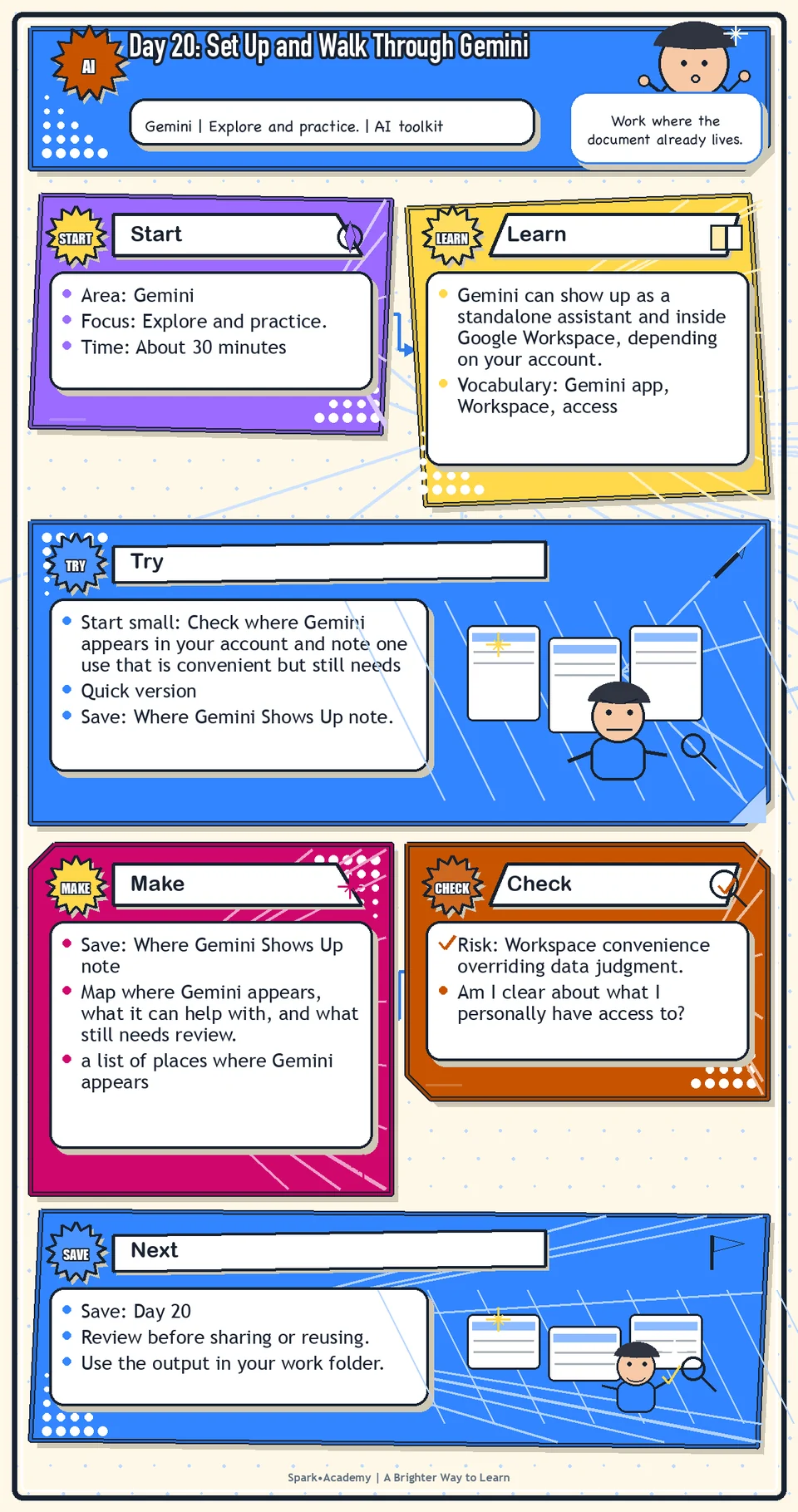
Why It Matters
Gemini can show up as a standalone assistant and inside Google Workspace, depending on your account. Before using it for real work, map where it appears, what it can do, and what still needs review.
Its value often comes from proximity to Gmail, Docs, Slides, Drive, and search-related work. That convenience can reduce friction, but it does not automatically make a use case appropriate for sensitive or unapproved content.
Save an access map that names available features, likely productivity uses, search or web-visibility uses, unclear limitations, and policy questions. The map should help you decide when Gemini fits and when another tool or review path is better.
Know Before You Try
Tool: Gemini. Start by reviewing the Gemini entry in The Tools, then open the standalone Gemini app or check whether Gemini appears inside Google Workspace. Use the Tools section as the main reference for links, Workspace access notes, account differences, and current feature notes. Today, focus on where Gemini appears for you and what each surface seems able to do.
Features may vary by account, plan, workspace settings, device, and workplace permissions. Be especially careful with connected apps such as Gmail, Docs, Drive, Slides, and Sheets. Do not use sensitive workplace material, private files, or connected Workspace content unless that use is approved.
Gemini is useful to think about in terms of fit: where the work is happening and what kind of help the task needs.
For this challenge, Gemini has two main lanes. One lane is Workspace productivity: drafting, summarizing, editing, or organizing work in tools like Gmail, Docs, Slides, Drive, or Sheets when those features are available. The other lane is web visibility thinking: considering how public content may be found, scanned, and understood.
Gemini may overlap with ChatGPT, but the surrounding context is different. If the work already lives in Google Workspace, Gemini may reduce switching and keep the workflow closer to the document or message you are editing.
That convenience raises the importance of boundaries. A tool that appears close to your work may have access rules, account settings, or workplace policies you need to understand before using real content.
Access and features may vary. The durable skill is to notice where Gemini appears, what kind of help it offers in your environment, and when another tool or human review process is the better choice.
Before you try
- Gemini can appear as a standalone app and inside Google products, but those experiences may have different capabilities, data access, and admin settings.
- Before using connected apps, understand what Gemini can access and what your account or workplace allows.
- Use Gemini's response tools, source links, or double-check habits when available, but still verify important facts yourself.
Where this helps
Use Gemini when working in Gmail, Docs, Slides, Drive, or when thinking about how content might be discovered, structured, or understood online.
- working inside Google Docs, Gmail, Slides, Drive, or Sheets and Gemini is available
- exploring how a draft might be structured for readers or search
- comparing Workspace-native AI support with ChatGPT workflows
Try It
Start small: Check where Gemini appears in your account and note one use that is convenient but still needs review.
Quick version
- Save: Where Gemini Shows Up note.
- Minimum useful version: List where Gemini appears for you, what each place seems useful for, and one caution for real workplace content.
- If stuck: "Gemini in Docs may help revise a paragraph, but I still need to check meaning, tone, and approval."
- Done when: You can describe Gemini's fit in your own Workspace environment.
- Add only if useful: Compare one Gemini use case with a similar ChatGPT use case.
Aim for
- Where it appears: Standalone Gemini, Docs, Gmail, Slides, or Drive depending on account.
- Useful task: Make a safe paragraph clearer or summarize a non-sensitive practice document.
- Caution: Being close to work documents does not remove the need for review and approval.
- Why this works: It records fit and boundaries instead of treating convenience as permission.
Practice
Open Gemini. Check whether Gemini appears in:
- Gmail.
- Google Docs.
- Google Slides.
- Google Drive.
- The standalone Gemini web app.
Create a note called "Where Gemini Shows Up." In that note, write:
- Where I can access Gemini.
- What it seems useful for.
- What I should be careful about.
- Where it may overlap with ChatGPT.
- Which use cases should wait for workplace guidance.
Work in passes:
- Check the standalone Gemini app.
- Check Gmail, Docs, Slides, Drive, and Sheets if you have access.
- Write down where Gemini appears and what it offers.
- Add a caution note about what content should not be used without approval.
If Gemini does not appear, do not force it. Record that access may not be enabled. That is still a useful outcome for the day.
Before you save it:
- Write down where Gemini is available in your account: app, Gmail, Docs, Sheets, Slides, Drive, Meet, or other tools.
- Test one safe prompt in the Gemini app and one safe prompt inside a Workspace app if available.
Prompt
Primary Prompt
Use this to get a first useful draft.
Help me create a Where Gemini Shows Up note. List where Gemini may appear, what each place is useful for, what to be careful about, where it overlaps with ChatGPT, and which use cases should wait for workplace guidance.Role:
Act as a Workspace AI orientation coach.
Task:
Help me create a Where Gemini Shows Up note. List where Gemini may appear, what each place is useful for, what to be careful about, where it overlaps with ChatGPT, and which use cases should wait for workplace guidance.
Context:
- Keep in mind: Gemini can support Workspace productivity and web visibility thinking, but access, data boundaries, and task fit should stay explicit.
- Work context: Gemini access and Workspace fit.
- Save as: Where Gemini Shows Up note.
Use these details if I provide them:
- Google tools I use.
- Where Gemini appears.
- Workspace rules.
- Safe tests.
Ask first only if needed:
- Ask up to three clarifying questions only when missing details would materially change the answer. Otherwise, proceed with clearly labeled assumptions or placeholders.
Keep it safe:
- Use only mock, public, sanitized, or workplace-approved information. Do not include sensitive, confidential, personal, customer, legal, financial, unreleased, private-code, credential, or regulated material unless that use is explicitly approved.
- Do not invent names, dates, metrics, source content, evidence, approvals, or promises. If details are missing, use labeled placeholders or a brief mock example.
How to work:
- Map where Gemini may appear.
- Explain use cases, cautions, overlap with ChatGPT, and guidance-needed uses.
- Avoid assuming access everywhere.
Give me:
1. Access map
2. Uses by location
3. Overlap with ChatGPT
4. Content to avoid
5. Safe practice test
6. Guidance-needed use cases
Style:
- Practical, clear, friendly, plain-English, specific, and non-hype.
- Use headings, bullets, or a compact table when that makes the output easier to scan.
Before you finish:
- The note should prevent confusion later.
- Make sure the answer is usable, grounded in provided or clearly labeled mock information, and clear about what needs human review before real use.Improve Prompt
Use this to clarify access and boundaries.
Review my Where Gemini Shows Up note. Add columns for available to me, possible use, content to avoid, needs workplace guidance, overlaps with ChatGPT, and safe practice prompt. Flag any assumptions about account or workspace access.Role:
Act as a Gemini access reviewer who checks availability, Workspace fit, overlap, and approval boundaries.
Task:
Review my Where Gemini Shows Up note. Add columns for available to me, possible use, content to avoid, needs workplace guidance, overlaps with ChatGPT, and safe practice prompt. Flag any assumptions about account or workspace access.
Context:
- Keep in mind: Gemini can support Workspace productivity and web visibility thinking, but access, data boundaries, and task fit should stay explicit.
- Work context: Gemini access and Workspace fit.
- Save as: Where Gemini Shows Up note.
Use these details if I provide them:
- Google tools I use.
- Where Gemini appears.
- Workspace rules.
- Safe tests.
Ask first only if needed:
- Ask up to three clarifying questions only when missing details would materially change the answer. Otherwise, proceed with clearly labeled assumptions or placeholders.
Keep it safe:
- Use only mock, public, sanitized, or workplace-approved information. Do not include sensitive, confidential, personal, customer, legal, financial, unreleased, private-code, credential, or regulated material unless that use is explicitly approved.
- Do not invent names, dates, metrics, source content, evidence, approvals, or promises. If details are missing, use labeled placeholders or a brief mock example.
How to work:
- Add columns for availability, use, content to avoid, guidance needed, overlap, and safe prompt.
- Flag assumptions about account or Workspace access.
- Clarify boundaries.
Give me:
1. Quick verdict
2. Issue table with priority, evidence, and recommended fix
3. Revised draft or targeted rewrite
4. Questions or approvals still needed
5. Before-use review checklist
6. Reusable review prompt pattern
Style:
- Practical, clear, friendly, plain-English, specific, and non-hype.
- Use headings, bullets, or a compact table when that makes the output easier to scan.
Before you finish:
- The note should prevent confusion later.
- Make sure the answer is usable, grounded in provided or clearly labeled mock information, and clear about what needs human review before real use.Apply Prompt
Use this to plan a safe Gemini test.
Help me design a safe Gemini practice test using only mock, public, sanitized, or approved content. Include one standalone Gemini prompt, one Workspace prompt if available, what to compare, and what cautions to write down afterward.Role:
Act as a practical Gemini practice coach who helps me compare standalone and Workspace prompts safely.
Task:
Help me design a safe Gemini practice test using only mock, public, sanitized, or approved content. Include one standalone Gemini prompt, one Workspace prompt if available, what to compare, and what cautions to write down afterward.
Context:
- Keep in mind: Gemini can support Workspace productivity and web visibility thinking, but access, data boundaries, and task fit should stay explicit.
- Work context: Gemini access and Workspace fit.
- Save as: Where Gemini Shows Up note.
Use these details if I provide them:
- Google tools I use.
- Where Gemini appears.
- Workspace rules.
- Safe tests.
Ask first only if needed:
- Ask up to three clarifying questions only when missing details would materially change the answer. Otherwise, proceed with clearly labeled assumptions or placeholders.
Keep it safe:
- Use only mock, public, sanitized, or workplace-approved information. Do not include sensitive, confidential, personal, customer, legal, financial, unreleased, private-code, credential, or regulated material unless that use is explicitly approved.
- Do not invent names, dates, metrics, source content, evidence, approvals, or promises. If details are missing, use labeled placeholders or a brief mock example.
How to work:
- Design a safe Gemini practice test.
- Include standalone and Workspace prompts if available.
- Compare outputs and cautions.
Give me:
1. Questions to ask me first
2. Access assumptions if I do not answer yet
3. Standalone Gemini practice prompt
4. Workspace practice prompt if available
5. Comparison plan
6. Cautions to record afterward
7. Reusable safe-test prompt pattern
Style:
- Practical, clear, friendly, plain-English, specific, and non-hype.
- Use headings, bullets, or a compact table when that makes the output easier to scan.
Before you finish:
- The note should prevent confusion later.
- Make sure the answer is usable, grounded in provided or clearly labeled mock information, and clear about what needs human review before real use.Make Something Useful
Map where Gemini appears, what it can help with, and what still needs review.
Save Where Gemini Shows Up note.
Make sure it includes:
- a list of places where Gemini appears
- a list of places where it does not appear or you are unsure
- possible use cases for each location
- cautions about sensitive or unapproved content
Use tomorrow: Pick one safe Workspace-style task, such as tightening an email or organizing a Doc outline, and note where Gemini could help without changing meaning or exposing sensitive content.
Review and Save
Specific risk to check: The risk today is Workspace convenience overriding data judgment. Connected tools may sit near real email, Docs, Slides, and Drive material that still needs approval before AI use.
Do not assume Workspace access means all work content is approved for AI use. Follow workplace guidance.
Ask yourself:
- Am I clear about what I personally have access to?
- Does Workspace convenience change the privacy or approval question?
- Where does Gemini overlap with ChatGPT?
- Which uses should wait for workplace guidance?
Watch for
Gemini may be convenient inside Google tools, but convenience alone does not make it the best tool. Choose based on the task.
Do not assume that because a tool is inside a familiar workspace, every document or email is appropriate to use with it. Follow workplace policy and approval paths.
Save
Save this in your 30-day work folder as Day 20 - Where Gemini Shows Up note.
Add a quick reuse note: Use this at work for: deciding where Gemini fits into Docs, Gmail, Slides, Drive, or search-oriented content work.
Save the note as a practical access map. It can prevent confusion later when a guide or colleague mentions a feature you may or may not have.
Check yourself
- I opened Gemini.
- I checked where Gemini is available to me.
- I looked for Gemini in Gmail, Docs, Slides, or Drive if available.
- I wrote down where Gemini may help inside Google Workspace.
- I noted where Gemini overlaps with ChatGPT.
- I understand that convenience does not always mean it is the best tool.
- I can name where Gemini appears for me and where I need more guidance.
- I can explain where Gemini fits my Workspace or web-content workflow and what still needs review.
Optional video
Watch: Prompt your way with Gemini (official Google YouTube channel, 1:08).
Why it helps: It offers a quick official introduction to prompting with Gemini.