Day 21: Use Gemini for Workspace Productivity
What you will learn and leave with
This lesson teaches you how to use Gemini for workspace productivity. It uses Gemini as a practical learning context while keeping privacy, accuracy, context, and human judgment in charge.
Use this when: you want guided practice with Gemini before applying it to real work. By the end: you will save Workspace productivity use case and improved practice asset.
Course position: Day 21 of 30 · Gemini module
Continue: Day 22: Produce a Workspace Ready Draft
Source check: product features and interfaces can change. Gemini for Google Workspace Help was checked for this course on 2026-08-30; confirm current details before using a changing feature.
Listen to the Day 21 Introduction
This short audio introduces the day and what to focus on.
Day 21: Use Gemini for Workspace Productivity audio transcript
Small work tasks can create a lot of friction.
Tighten this email. Summarize this note. Turn this paragraph into an outline. Make this draft easier to review.
Welcome to Day 21 of the 30-Day AI at Work Challenge: Use Gemini for Workspace Productivity.
Today is about using Gemini for focused tasks where the work already lives, especially in Google Workspace when the feature is available to you.
Here is why this matters. Productivity is not always about huge automation. Sometimes it is about reducing the effort it takes to move from messy to usable.
Gemini may help draft an email, organize a document, summarize safe material, shape a slide outline, or create a clearer version of a paragraph. But the task should stay bounded. Ask for a specific kind of help, then check the result.
The risk today is quiet meaning change. An edit can look cleaner while changing tone, commitment, ownership, timing, or facts.
So as you work, compare before and after. Did the meaning stay the same? Did the tone still sound like you and like the workplace? Did Gemini add a claim, promise, or detail that was not there?
In the lesson, you will use a safe Workspace-style task, improve it, and save a before-and-after example with notes about what you verified.
Before you begin, think of one small task that often slows you down. Is it starting an email, summarizing notes, cleaning up a paragraph, or making an outline?
By the end, you will save a Workspace productivity use case and improved practice example. The point is not to hand off the work. It is to reduce friction while keeping meaning intact.
Why It Matters
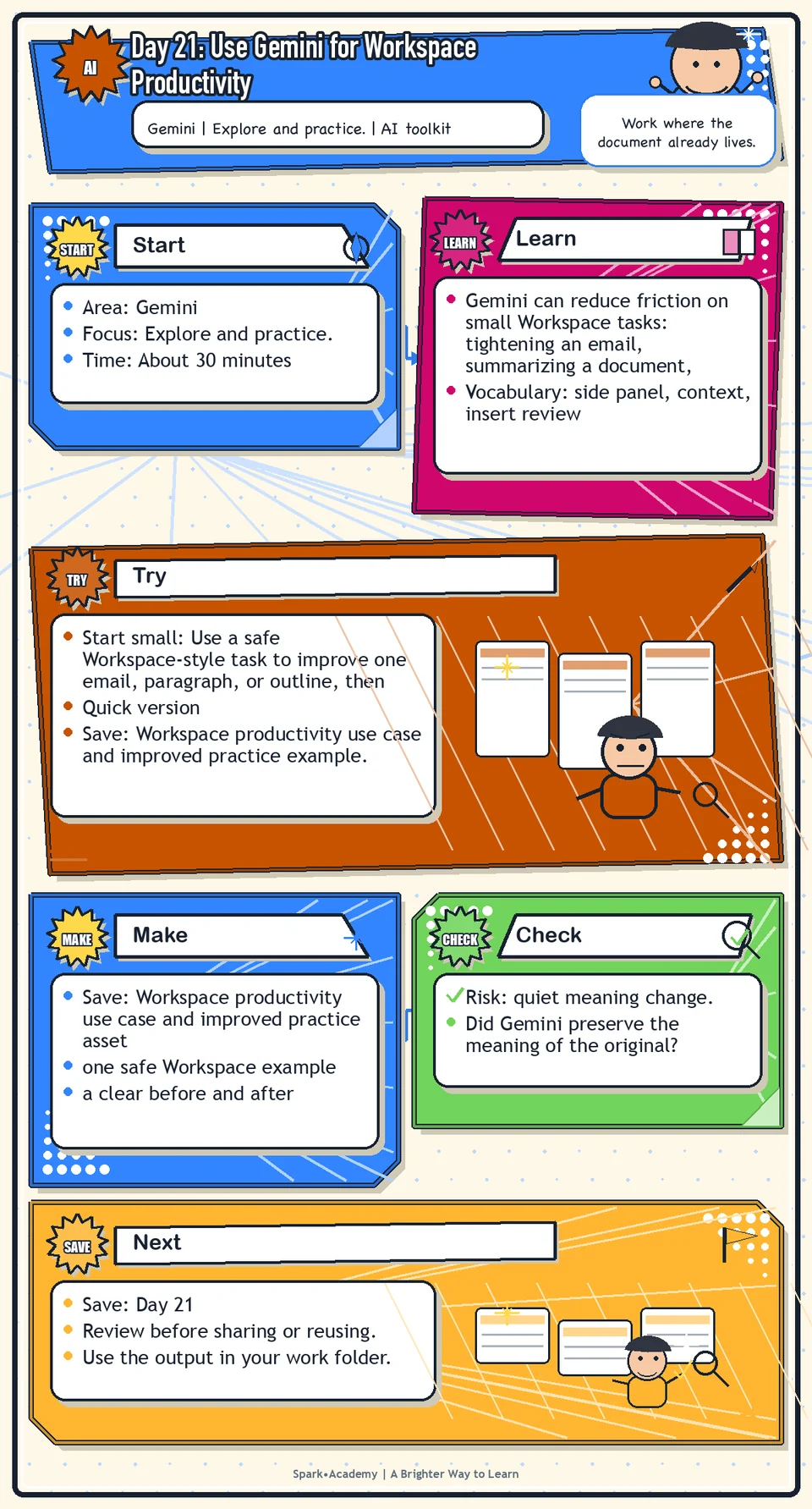
Gemini can reduce friction on small Workspace tasks: tightening an email, summarizing a document, shaping an outline, or clarifying a paragraph. Keep the task focused and check the result before it moves forward.
These small tasks can be cognitively expensive even when they are not high stakes. AI can help, but only if you keep facts, tone, permissions, and next steps visible.
Save a before-and-after example that shows what improved and what you verified. The final version should be easier to use while still clearly under your control.
Know Before You Try
Workspace AI is valuable because it can reduce context switching. If Gemini is available inside Gmail or Docs, it can help with drafts, summaries, rewrites, and outlines where the work already lives.
The best use cases are focused and bounded: summarize this safe text, rewrite this paragraph for clarity, create an outline, suggest a response, identify missing points, or turn notes into a clean working draft.
The main risk is the false finish. Because the draft appears inside a real document or message, it can feel closer to done than it is. Speed and proximity are not the same as quality.
Workspace productivity has two responsibilities: improve the working document and preserve ownership. The person who owns the document still owns the facts, tone, approvals, and final decision to share.
Slow down enough to check names, dates, claims, links, assumptions, and whether the message fits the relationship. Use Gemini to reduce context switching, not to replace your understanding of the work.
Before you try
- Workspace productivity is about reducing context switching. Gemini can help when the work already lives in Gmail, Docs, Sheets, Slides, Drive, Meet, or related Google tools.
- The side panel can summarize, analyze, and generate content using the context available in the app, but access depends on your workplace's settings and file permissions.
- Always review before inserting AI-generated text into shared documents, emails, or slides. Once inserted, it looks like normal work product.
Where this helps
Use Gemini for email drafting, document polishing, note summaries, slide outlines, and quick rewrites inside Google Workspace.
- revising a Google Doc
- drafting or improving a safe email
- summarizing a safe document or Drive file
- turning notes into an outline or action list
Try It
Start small: Use a safe Workspace-style task to improve one email, paragraph, or outline, then compare before and after.
Quick version
- Save: Workspace productivity use case and improved practice example.
- Minimum useful version: Improve one safe paragraph, email, note, or slide outline and write what changed.
- If stuck: Ask for one clearer version and one shorter version, then keep only the edits that preserve meaning.
- Done when: You can identify what Gemini improved and what you changed yourself.
- Add only if useful: Add an accept, revise, or reject note for each major AI suggestion.
Aim for
- Before: "Can you look at this and tell me what you think?"
- After: "Could you review this draft for clarity, accuracy, and any missing context before Friday?"
- AI edit accepted: Clearer ask and timeline.
- Human edit kept: Final tone and whether Friday is realistic.
Practice
Choose one practice example:
- Email.
- Document paragraph.
- Meeting notes.
- Slide outline.
Ask Gemini to make it clear, friendly, and concise while keeping the meaning the same. Then ask for:
- One warmer version.
- One more concise version.
- One version that is shorter but still complete.
Compare the outputs and choose the parts that actually improve the work.
Work in passes:
- Choose a safe mock Workspace item.
- Ask Gemini for one focused task, such as summarize, rewrite, or outline.
- Compare the result to the original.
- Edit the output so it matches your voice, context, and accuracy needs.
If Gemini gives a generic response, add context about the audience, purpose, and desired format. If the output is too long, ask for a concise version with only the most important points.
Before you save it:
- Choose one realistic Workspace task, such as summarizing a safe document or drafting a safe email.
- Check whether Gemini used the right context and whether anything important from the source was missed.
Prompt
Primary Prompt
Use this to get a first useful draft.
Improve this practice example so it is clear, friendly, and concise while keeping the meaning the same. Then create one warmer version, one more concise version, and one shorter version that is still complete.Role:
Act as a Workspace editing coach.
Task:
Improve this practice example so it is clear, friendly, and concise while keeping the meaning the same. Then create one warmer version, one more concise version, and one shorter version that is still complete.
Context:
- Keep in mind: Workspace AI is useful when it reduces context switching, but speed still requires review for meaning, accuracy, tone, and appropriateness.
- Work context: Gemini for Workspace productivity.
- Save as: improved Workspace practice example.
Use these details if I provide them:
- Safe Workspace asset.
- Audience.
- Tone.
- Meaning to preserve.
Ask first only if needed:
- Ask up to three clarifying questions only when missing details would materially change the answer. Otherwise, proceed with clearly labeled assumptions or placeholders.
Keep it safe:
- Use only mock, public, sanitized, or workplace-approved information. Do not include sensitive, confidential, personal, customer, legal, financial, unreleased, private-code, credential, or regulated material unless that use is explicitly approved.
- Do not invent names, dates, metrics, source content, evidence, approvals, or promises. If details are missing, use labeled placeholders or a brief mock example.
How to work:
- Improve clarity, friendliness, and concision.
- Create warmer, concise, and shorter versions.
- Preserve meaning.
Give me:
1. Improved version
2. Warmer version
3. More concise version
4. Shorter complete version
5. Comparison and recommendation
6. Review notes
Style:
- Practical, clear, friendly, plain-English, specific, and non-hype.
- Use headings, bullets, or a compact table when that makes the output easier to scan.
Before you finish:
- The edit should sound like better work, not generic AI writing.
- Make sure the answer is usable, grounded in provided or clearly labeled mock information, and clear about what needs human review before real use.Improve Prompt
Use this to review the output before accepting it.
Compare the original practice example with the improved versions. Identify any meaning changes, missing details, tone problems, unsupported additions, and which sentence from each version is worth keeping.Role:
Act as a Workspace editing reviewer who checks meaning, tone, missing details, and unsupported additions.
Task:
Compare the original practice example with the improved versions. Identify any meaning changes, missing details, tone problems, unsupported additions, and which sentence from each version is worth keeping.
Context:
- Keep in mind: Workspace AI is useful when it reduces context switching, but speed still requires review for meaning, accuracy, tone, and appropriateness.
- Work context: Gemini for Workspace productivity.
- Save as: improved Workspace practice example.
Use these details if I provide them:
- Safe Workspace asset.
- Audience.
- Tone.
- Meaning to preserve.
Ask first only if needed:
- Ask up to three clarifying questions only when missing details would materially change the answer. Otherwise, proceed with clearly labeled assumptions or placeholders.
Keep it safe:
- Use only mock, public, sanitized, or workplace-approved information. Do not include sensitive, confidential, personal, customer, legal, financial, unreleased, private-code, credential, or regulated material unless that use is explicitly approved.
- Do not invent names, dates, metrics, source content, evidence, approvals, or promises. If details are missing, use labeled placeholders or a brief mock example.
How to work:
- Compare original and improved versions.
- Find meaning changes, missing details, tone issues, and unsupported additions.
- Recommend what to keep.
Give me:
1. Quick verdict
2. Issue table with priority, evidence, and recommended fix
3. Revised draft or targeted rewrite
4. Questions or approvals still needed
5. Before-use review checklist
6. Reusable review prompt pattern
Style:
- Practical, clear, friendly, plain-English, specific, and non-hype.
- Use headings, bullets, or a compact table when that makes the output easier to scan.
Before you finish:
- The edit should sound like better work, not generic AI writing.
- Make sure the answer is usable, grounded in provided or clearly labeled mock information, and clear about what needs human review before real use.Apply Prompt
Use this inside a safe Workspace workflow.
Ask me for a safe email, document paragraph, meeting note, or slide outline. Then help me improve it for clarity, warmth, and concision while preserving meaning and marking anything I should review before using.Role:
Act as a practical Workspace editing coach who helps me improve a safe asset while preserving meaning.
Task:
Ask me for a safe email, document paragraph, meeting note, or slide outline. Then help me improve it for clarity, warmth, and concision while preserving meaning and marking anything I should review before using.
Context:
- Keep in mind: Workspace AI is useful when it reduces context switching, but speed still requires review for meaning, accuracy, tone, and appropriateness.
- Work context: Gemini for Workspace productivity.
- Save as: improved Workspace practice example.
Use these details if I provide them:
- Safe Workspace asset.
- Audience.
- Tone.
- Meaning to preserve.
Ask first only if needed:
- Ask up to three clarifying questions only when missing details would materially change the answer. Otherwise, proceed with clearly labeled assumptions or placeholders.
Keep it safe:
- Use only mock, public, sanitized, or workplace-approved information. Do not include sensitive, confidential, personal, customer, legal, financial, unreleased, private-code, credential, or regulated material unless that use is explicitly approved.
- Do not invent names, dates, metrics, source content, evidence, approvals, or promises. If details are missing, use labeled placeholders or a brief mock example.
How to work:
- Ask for a safe Workspace item.
- Improve it while preserving meaning.
- Mark what to review before use.
Give me:
1. Questions to ask me first
2. Safe assumptions if I do not answer yet
3. Adapted improved Workspace practice example
4. Review before real use
5. Reusable prompt pattern
Style:
- Practical, clear, friendly, plain-English, specific, and non-hype.
- Use headings, bullets, or a compact table when that makes the output easier to scan.
Before you finish:
- The edit should sound like better work, not generic AI writing.
- Make sure the answer is usable, grounded in provided or clearly labeled mock information, and clear about what needs human review before real use.Make Something Useful
Save a before-and-after Workspace example that shows what Gemini improved and what you verified.
Save Workspace productivity use case and improved practice example.
Make sure it includes:
- one safe Workspace example
- a clear before and after
- notes about what improved
- notes about what still required human judgment
Review and Save
Specific risk to check: The risk today is quiet meaning change. Workspace edits can alter tone, commitment, ownership, or facts while still looking like a cleaner draft.
Make sure Gemini did not change the meaning. Check tone, accuracy, and whether the final version still sounds like you.
Ask yourself:
- Did Gemini preserve the meaning of the original?
- Did it add claims, details, or tone that do not belong?
- Is the output appropriate for the audience?
- Would this need review before being used in real work?
Watch for
Workspace AI can make editing fast, but it may also make everything sound generic. Do not accept the first polished version just because it reads smoothly.
Convenience can make review feel optional. It is not optional. The closer AI is to your real work, the more important it is to slow down before trusting the output.
Save
Save this in your 30-day work folder as Day 21 - Workspace productivity use case and improved practice example.
Add a quick reuse note: Use this at work for: improving a safe Workspace draft, email, summary, or outline while preserving meaning and tone.
Save the workflow note with the prompt you used. Good Workspace prompts can become quick reusable tools.
Check yourself
- I used Gemini on a Workspace related task.
- I improved or summarized a piece of work.
- I compared versions with different tones or levels of polish.
- I checked whether Gemini changed the meaning.
- I made the final version sound like me.
- I saved one Workspace productivity use case.
- I can use Gemini for one focused Workspace task and review the result carefully.
- I can use Gemini to improve a safe Workspace draft or file while checking meaning, tone, and readiness.
Optional video
Watch: Create faster with Gemini in Google Workspace (official Google Workspace YouTube channel, 1:15).
Why it helps: It shows Gemini working across Workspace, which reinforces productivity-in-context rather than separate chatbot use.